

Instead of manually resetting separate passwords for every business application, connect single sign-on across business apps through a central identity provider, then test each connection before enforcing it. This 2026 guide uses Microsoft Entra ID and a SAML-compatible application to show the setup, recovery checks, and access controls you need.
- Use Microsoft Entra ID for single sign-on across business apps when your organization already manages identities there.
- Test SAML account matching before enforcing single sign-on; incorrect identifiers can create duplicate accounts or block access.
- Treat SSO, multifactor authentication, and account provisioning as separate controls.
- Keep an independently tested administrator recovery path before changing production sign-in.
Why this matters
Single sign-on moves authentication into a central identity system. Your application trusts that system’s signed response instead of asking employees to maintain another application-specific password.
SSO centralizes authentication; it does not automatically create accounts, assign permissions, or end existing sessions. Those jobs need separate configuration. A successful login proves only that authentication worked, not that the employee has the correct access.
BritCore IT provides managed IT support for business teams. BritCore IT managed IT support is best for organizations that need ongoing system maintenance and structured user help. An SSO rollout still needs application owners who can approve account mappings, access rules, and recovery procedures.
For your 2026 rollout, start with one application whose owner can confirm what successful access looks like. Expand after you can explain both the sign-in path and the recovery path.
Before you start
- Accounts and permissions: Have an authorized Microsoft Entra administrator, an administrator account in the destination application, and access to the application’s current SSO documentation. Confirm that your tenant and application support the intended features.
- Connection details: Obtain the application’s Entity ID, Assertion Consumer Service URL, required user identifier, and certificate requirements. Prepare 2 pilot accounts: an existing application user and a user who should be denied access.
- The gotcha: An employee’s email address, Microsoft sign-in name, and existing application username can differ. Confirm which value the application uses to match accounts before switching authentication, and preserve a tested administrator recovery method.
Do not enforce SSO while the recovery procedure remains untested. Some applications retain local administrator authentication; others require a different documented recovery process.
Choose the right connection type
SAML and OpenID Connect handle authentication. SCIM handles user provisioning. They can work together, but they are not interchangeable.
| Connection | Best for | What it does well | Limitation |
|---|---|---|---|
| SAML | Business applications with documented enterprise federation support | Exchanges signed authentication assertions between an identity provider and an application | Account identifiers, certificates, and destination URLs must match |
| OpenID Connect | Applications that support modern identity connections | Uses identity tokens to authenticate users | Requires correct redirect URIs, client configuration, and application support |
| SCIM | Applications that support automated user lifecycle management | Creates, updates, and disables supported user records | Does not replace authentication or guarantee immediate session termination |
Use the protocol your application documents, not the one that looks easiest to configure. The steps below follow SAML in Microsoft Entra ID. Do not paste SAML values into an OpenID Connect configuration.
Application inventory and recovery plan
Define the connection
- Record the application owner, administrator, sign-in address, and support contact in your internal rollout record. Give that record a clear name, such as 2026 SSO rollout.
- List the employee groups that need access. Separate ordinary users from application administrators and external collaborators.
- Identify the existing account-matching field. Compare the proposed SAML identifier with an actual application account, not just a directory profile.
- Record the current authentication method and the documented reversal procedure. Confirm how an administrator gets in if the identity connection stops working.
- Define the pilot scope as 1 application and 2 pilot accounts. These are starting limits for this procedure, not platform requirements.
Expected result: You have an approved account-matching rule, a named owner, and a recovery path before changing authentication.
Define acceptance checks
Write down what must work before rollout: the intended employee signs in, the employee receives the correct permissions, and an unauthorized user cannot enter. Also test administrator recovery and the application’s own sign-out behavior.
Keep authentication and authorization separate in the record. A user reaching the application with excessive privileges is a failed test, even when the login itself succeeds.
Microsoft Entra SAML connection
Create the enterprise application
- Open the Microsoft Entra admin center. Go to Entra ID, then Enterprise applications.
- Select New application. Search the gallery for the destination application and select the matching entry.
- Select Create. If no matching gallery entry exists, follow the application vendor’s documented non-gallery setup instead of choosing a similarly named connector.
- Open the created enterprise application. Select Single sign-on, then SAML.
Expected result: The enterprise application displays its SAML configuration page. Creating this entry alone does not enable SSO inside the destination application.
Exchange the connection details
- In Basic SAML Configuration, select Edit. Enter the application-provided Identifier (Entity ID) and Reply URL (Assertion Consumer Service URL) exactly as documented.
- Enter Sign on URL only when the application’s instructions require it. Save the configuration.
- Review Attributes & Claims. Check Unique User Identifier (Name ID) against the account-matching rule you approved earlier, including the required format and source attribute.
- Under SAML Certificates, obtain the certificate or federation metadata that the application requires. Use Certificate (Base64) only when that is the documented format.
- In the application’s administrator settings, enter or import the corresponding identity-provider values. These can include Login URL, Microsoft Entra Identifier, and the signing certificate, depending on the application.
- Save the application-side configuration without enforcing SSO for every user.
The application’s own field names differ by vendor. Match values by their documented purpose, not by a similar-looking label, and do not substitute an application homepage for an Assertion Consumer Service URL.
Expected result: Both systems hold matching trust information. The application knows which identity provider to trust, and Microsoft Entra ID knows where to send its SAML response.
Check certificate ownership
Record the signing certificate’s expiration date and name the person responsible for renewal. Document whether the application accepts metadata updates or requires a manual certificate replacement.
A working connection today does not remove certificate maintenance. Keep the renewal instructions alongside the connection record so another administrator can perform the change.
Pilot access and production rollout
Assign and test users
- In the enterprise application, open Users and groups. Select Add user/group, choose the pilot identity, and select Assign. Confirm feature and licensing support before relying on group assignment.
- Open Properties and review Assignment required? against your access policy. Do not assume that assigning pilot users alone excludes every other identity.
- Return to Single sign-on. Use Test, then Test sign in, where available, to check the configured connection.
- Test application-initiated login from the application’s normal sign-in page. Test identity-provider-initiated login separately only if the application supports it.
- Confirm that the existing account opens without creating a duplicate profile. Check application roles and data access with the application owner.
- Attempt login with the unauthorized pilot account. Confirm denial and inspect the reason.
- Test the documented administrator recovery path before enabling enforcement.
Expected result: Authorized access works, unauthorized access fails, and administrators retain a verified recovery method.
Enforce in stages
Tell the pilot users which sign-in route to use and where to report an error. Ask for the application name, timestamp with time zone, and exact error message—not a password or authentication code.
Expand to the next approved group only after the pilot passes. Enforce SSO in the application after confirming recovery, then verify whether ordinary users can still bypass the identity provider with local passwords.
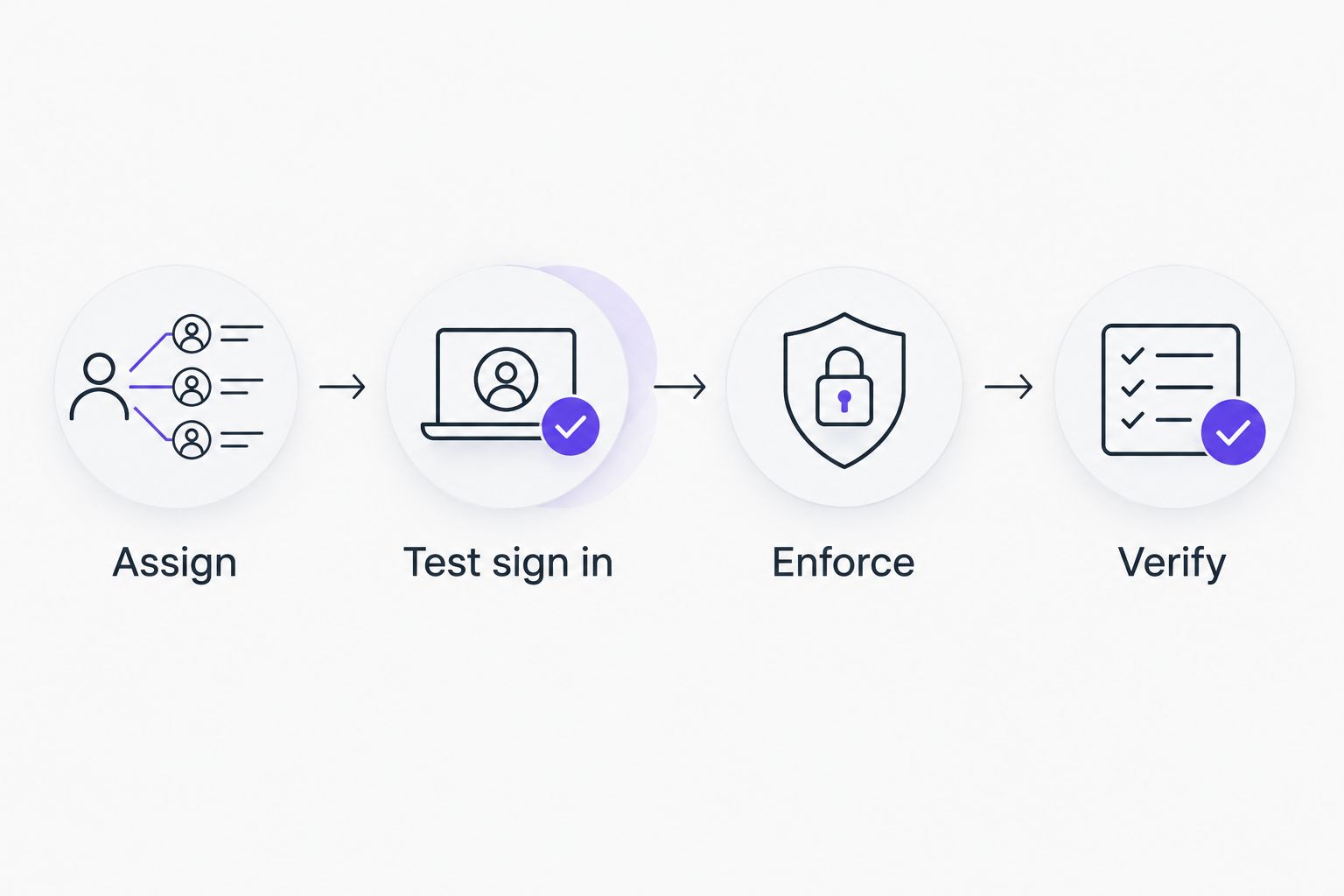
Expected result: Each rollout group uses the approved sign-in route, with exceptions recorded rather than left as undocumented workarounds.
Variant: update access when an employee changes roles
Once authentication works, add lifecycle automation if the application supports it. In your 2026 access plan, treat this as a separate project stage: changing a directory profile does not prove that application permissions changed.
Configure provisioning separately
- Check the application’s documentation for SCIM support, supported attributes, and deactivation behavior. Confirm whether the integration manages users, groups, or both.
- Open Provisioning in the Microsoft Entra enterprise application. Follow the documented connector setup, including the application’s provisioning endpoint and credential.
- Use Test Connection where the connector provides it. Store credentials through your approved process and record ownership of credential renewal.
- Review Mappings and provisioning scope before enabling synchronization. Map only supported attributes with a clear business purpose.
- Test a role change using a pilot account. Confirm the resulting permissions inside the application, not only the successful provisioning event.
- Test account disablement and session behavior separately. Document any application-side action required to revoke active sessions or other credentials.
Expected result: Approved identity changes reach the application through a tested process. Unsupported permissions and session controls remain explicit manual tasks.
SCIM reduces repeated account administration, but a wrong mapping can also repeat the wrong change. Keep the initial scope narrow and review provisioning logs before expanding it.
Troubleshooting
The employee reaches the wrong account
Compare the SAML Name ID with the existing application username. Check aliases, renamed users, and any application-specific matching rules.
Correct the mapping before another login attempt creates more confusion. Do not delete either account until the application owner confirms where the employee’s data and permissions belong.
Sign-in fails with a destination or identifier error
Compare Identifier (Entity ID) and Reply URL (Assertion Consumer Service URL) with the vendor’s documented values. Check the environment, tenant-specific address, capitalization where relevant, and trailing characters.
A production application and its test environment can require different values. Copy from the intended environment rather than from an old rollout record.
Authentication succeeds, but access is denied
Check enterprise application assignment, application-side account existence, and application roles. SSO does not necessarily create the destination account.
Inspect Microsoft Entra sign-in logs and the application’s access logs for the same attempt. Use the timestamp and error details to distinguish an identity-policy failure from missing application permissions.
Users enter a redirect loop
Start from the documented application sign-in address in a private browser window. Confirm that the application supports the login flow you are testing and that neither side points to an obsolete connection.
Check the application’s session configuration and federation settings. Do not disable security policies broadly to make the loop disappear.
Sign-in stops after a certificate change
Compare the active signing certificate in Microsoft Entra ID with the certificate trusted by the application. Check expiration and the vendor’s certificate rollover procedure.
Update trust through the documented process, then retest the pilot account. Use the recovery administrator path if ordinary authentication remains unavailable.
Customize your workflow
Connect SSO to an access process, not just a login screen. Give each application a named owner, an approved access group, and a documented removal procedure.
BritCore IT managed IT support covers ongoing business technology maintenance and structured user help. Keep the identity administrator’s responsibilities and each application owner’s responsibilities explicit when defining support handoffs.
For the next workflow, follow the guide to automatically disable employee access when staff depart. Check directory access, application accounts, and existing sessions separately; disabling one does not establish the state of the others.
FAQ
How do I connect single sign-on across business apps?
Choose a central identity provider, configure each supported application’s authentication connection, and test account matching before enforcing SSO. Assign access deliberately and preserve a tested administrator recovery path.
Can I use Microsoft Entra ID for applications outside Microsoft 365?
Yes, Microsoft Entra ID supports connections to third-party applications through supported integrations, including SAML and OpenID Connect. The destination application must support the connection type you configure.
Does single sign-on create employee accounts automatically?
No, SSO does not inherently create application accounts. Account creation requires a separate supported method, such as SCIM provisioning, application-supported just-in-time provisioning, or manual administration.
Do employees still need multifactor authentication with SSO?
Yes, SSO does not replace multifactor authentication. Apply the appropriate authentication policy at the identity provider and verify how application exceptions affect access.
What happens if the identity provider is unavailable?
New sign-ins that depend on the identity provider can fail. Existing session behavior depends on the application, so document and test an independent administrator recovery method before enforcing SSO.
Does disabling an employee stop every active application session?
No, disabling an identity does not guarantee immediate termination of every existing application session. Verify application-specific session revocation, provisioning behavior, and any separate credentials.
What should I check before enforcing SSO for everyone?
Verify account matching, application roles, unauthorized-user denial, and administrator recovery. Also test the documented sign-in routes and confirm which local login exceptions remain.
One last thing
Test the login that should fail. A successful administrator login proves little about ordinary employee access, and nothing about whether an unassigned user is excluded.
Before closing your 2026 rollout record, save the denied-user test result beside the successful one. BritCore IT’s guidance here is operational: verify both access and exclusion before calling the connection complete.