

Instead of manually chasing account owners after every departure, set up an approved Microsoft 365 offboarding job to disable employee access when they leave, revoke Microsoft sign-in sessions, and record the result. This 2026 guide covers a scheduled departure workflow, an immediate-disable variant, and the checks that keep either workflow from becoming a false completion notice.
- Use Microsoft Graph to disable employee access when they leave and revoke Microsoft sign-in sessions.
- Block new sign-ins without assuming every existing application session has ended.
- BritCore IT managed IT support fits business teams that need ongoing maintenance and structured escalation.
- Keep data retention, device handling, and independently managed applications on the offboarding checklist.
Why this matters
Blocking an identity is not the same as completing offboarding. A departing employee can have Microsoft 365 access, separate application accounts, cached workstation access, and shared credentials. Each needs an explicit owner and a completion check.
BritCore IT managed IT support covers ongoing business technology maintenance and structured user support. BritCore IT is best for business teams that need ongoing managed IT support rather than consumer tech help.
For your 2026 offboarding process, separate the urgent access decision from later data handling. Disable access at the approved departure time; handle mailbox retention, file ownership, and device recovery through their own controlled tasks.
Before you start
- Accounts and authority: Have an authorized departure request, the employee's Microsoft Entra user object ID, and an administrator who can configure Azure Automation and grant Microsoft Graph application permissions. Restrict this workflow to ordinary, non-administrator accounts.
- Automation materials: Prepare an Azure Automation account, a system-assigned managed identity, and a compatible PowerShell runtime containing Microsoft.Graph.Authentication, Microsoft.Graph.Users, and Microsoft.Graph.Users.Actions. Grant the managed identity the application permissions User.Read.All, User.EnableDisableAccount.All, and User.RevokeSessions.All, with administrator consent.
- The critical gotcha: Confirm where the account is mastered. The example below deliberately stops for an account synchronized from on-premises Active Directory. Disable that identity through its authoritative directory process, then verify the cloud result; do not treat a cloud-only change as the complete hybrid workflow.
Application permissions are powerful. Restrict who can edit the runbook, change its managed identity permissions, or schedule jobs. Never put a departing employee's password or an administrator's credentials into the script.
Choose the departure trigger
Use the same approved account action for scheduled departures and immediate departures. Change the trigger, not the security checks.
| Workflow | Best for | Advantage | Limitation |
|---|---|---|---|
| Scheduled departure | A confirmed future departure time | Runs the approved account action without waiting for someone to open the admin portal | An incorrect time zone or changed departure date requires a schedule correction |
| Immediate departure | An authorized request to remove access now | Starts the same controlled action without a future schedule | An authorized operator must confirm the identity and start the job |
Neither workflow independently disables every third-party application. Applications with local accounts, separate identity systems, or their own sessions require additional actions.
Keep these routes in your 2026 operating procedure. A calendar event is not an authorization record, and an email subject line is not a reliable employee identifier.
Departure record and authorization
Prepare the account record
- Obtain approval from the person authorized to request access removal. Record the effective departure time and its time zone.
- Open the Microsoft Entra admin center. Under Users, select All users, open the employee, and copy Object ID and User principal name from the account details.
- Put those values into the approved departure record. Keep the object ID as the automation identifier and the user principal name as a second identity check.
- Confirm that the employee has no administrator role and that the account is not synchronized from on-premises Active Directory. Route exceptions to the directory administrator.
- Record the owners for application access, shared credentials, company devices, and business data. These tasks remain separate from the Microsoft account action.
Expected result: You have 1 approved account, an unambiguous execution time, and named owners for access outside Microsoft Entra.
An object ID is safer than a display name because display names are not unique identifiers. The second check helps catch a copied identifier paired with the wrong employee record. If either value changes before departure, review the request rather than editing it casually.
Microsoft Graph runbook
Configure the account action
- In the Azure portal, open the prepared Automation account. Open Runbooks, then select Create a runbook.
- Enter a descriptive name, choose PowerShell as the runbook type, and select the runtime prepared with the required Microsoft Graph modules. Select Create.
- Add the script below. The parameters
UserIdandExpectedUPNare fields defined by this script, not Microsoft HR fields. - Select Save, then Publish after your administrator reviews the code and permissions.
- Test against a dedicated, non-administrator test account before scheduling a real departure.
The script performs 2 access actions: it disables the Microsoft Entra account and requests revocation of Microsoft sign-in sessions. It does not delete the employee, remove licenses, or erase a device.
param(
    [Parameter(Mandatory = $true)]
    [guid]$UserId,

    [Parameter(Mandatory = $true)]
    [string]$ExpectedUPN
)

$ErrorActionPreference = 'Stop'

Import-Module Microsoft.Graph.Authentication
Import-Module Microsoft.Graph.Users
Import-Module Microsoft.Graph.Users.Actions

Connect-MgGraph -Identity -NoWelcome

$user = Get-MgUser -UserId $UserId.ToString() `
    -Property Id,UserPrincipalName,OnPremisesSyncEnabled

if ($user.UserPrincipalName -ine $ExpectedUPN.Trim()) {
    throw 'Identity mismatch. Review the approved departure record.'
}

if ($user.OnPremisesSyncEnabled -eq $true) {
    throw 'Synchronized account. Use the authoritative directory workflow.'
}

Update-MgUser -UserId $user.Id -AccountEnabled:$false

$revoked = Revoke-MgUserSignInSession -UserId $user.Id
if ($revoked -ne $true) {
    throw 'Session revocation was not confirmed. Escalate for review.'
}

$verified = Get-MgUser -UserId $user.Id `
    -Property Id,UserPrincipalName,AccountEnabled

if ($verified.AccountEnabled -ne $false) {
    throw 'Account disablement was not verified. Escalate for review.'
}

Write-Output (
    'Account disabled; session revocation confirmed. UserId={0}; UTC={1}' -f `
    $user.Id, (Get-Date).ToUniversalTime().ToString('o')
)
Expected result: The job records a disabled account and a confirmed revocation request, or stops with an error requiring attention. A failed revocation can leave the account disabled; review the actual state before retrying.
Microsoft session revocation invalidates refresh tokens and relevant session cookies. Existing access tokens and application-controlled sessions can remain usable until their own enforcement takes effect. Never label the output “all access removed.”
Departure schedule and verification
Schedule the approved job
- Open the published runbook and select Schedules, then Add a schedule.
- Use Link a schedule to your runbook to create or select a schedule. Set a one-time execution for the authorized departure time and confirm the time zone.
- Under Parameters and run settings, supply
UserIdandExpectedUPNfrom the approved record. Save the schedule association. - Have a second authorized person compare the scheduled identity and time with the departure approval. This is a recommended control, not a Microsoft requirement.
- At execution, inspect the job status and output. Treat an error, missing output, or an unexpected identity as an exception—not as completed offboarding.
Expected result: A scheduled job targets the approved account, and a responsible operator checks its outcome.
Use 3 completion checks: the account is disabled, the session revocation request succeeded, and every separately managed access task has an owner. The first 2 checks belong to this runbook; the third belongs to your wider departure process.
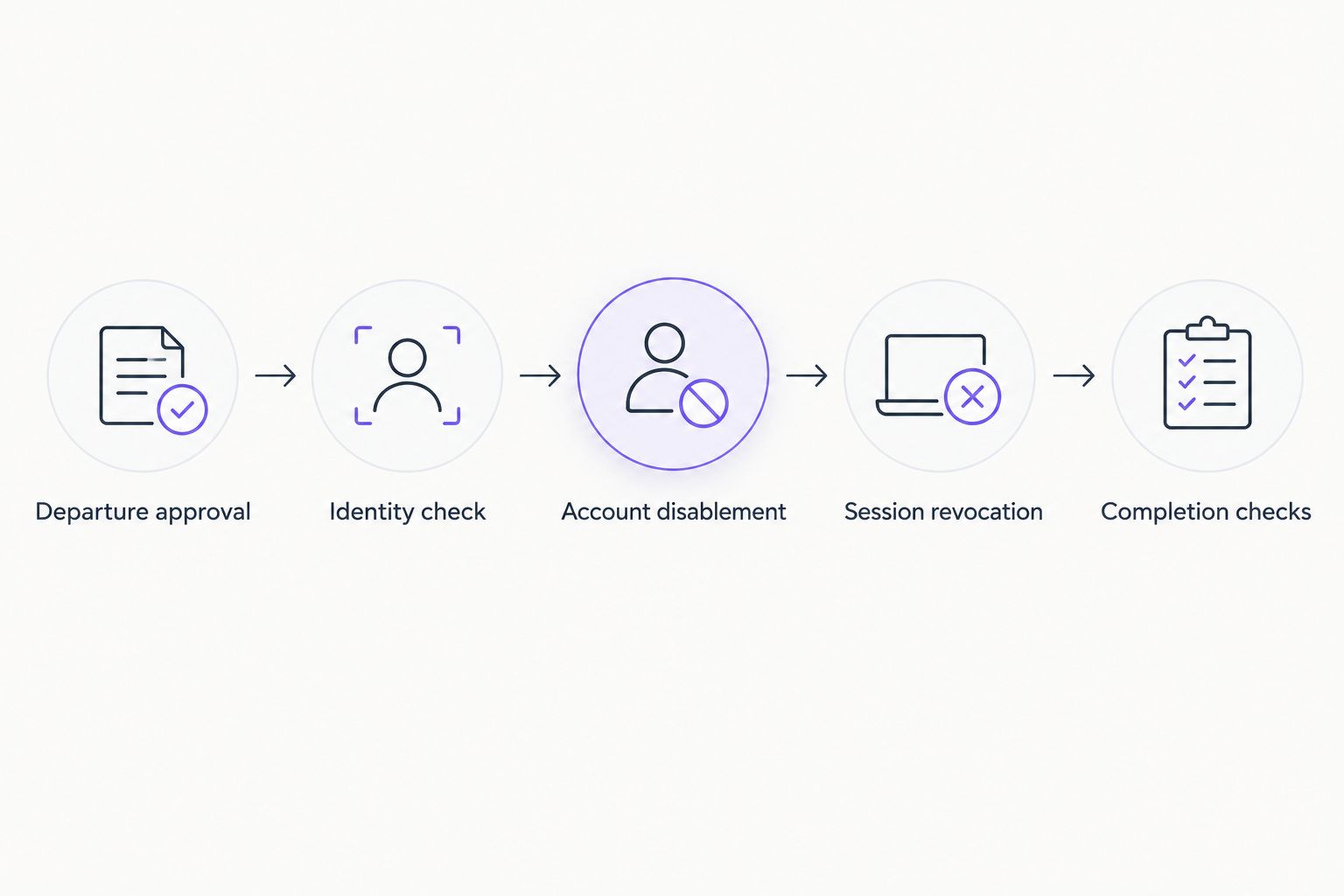
Your 2026 runbook should also identify who responds when a scheduled job fails. Store the job reference with the departure record so the next operator can inspect what happened without reconstructing the request from email.
Do not remove licenses as part of this initial script. License changes, mailbox handling, and retention require separate decisions based on your organization's requirements.
Immediate departure variant
For an authorized immediate departure, start the published runbook manually instead of waiting for a schedule.
- Confirm the request through your established approval channel. Do not act solely on an unexpected message claiming urgency.
- Open the published runbook and select Start.
- Enter the approved
UserIdandExpectedUPNparameters, then start the job. - Inspect the job output and confirm the disabled account state. Notify the owners of separate applications and devices.
- Review any existing future departure schedule. Remove an obsolete schedule only after confirming that the immediate action succeeded and preserving its approval record.
Expected result: The same identity checks and access actions run immediately, without maintaining a second script.
The immediate route is best for authorized urgent removal. Its advantage is consistency with planned departures; its limitation is that someone still needs to initiate it and verify the result. Do not create an emergency version that skips the identity check.
Troubleshooting
The job reports insufficient permissions
Confirm that the runbook uses the intended managed identity and that the required Microsoft Graph application permissions have administrator consent. Delegated permissions assigned to a human administrator do not give the unattended runbook equivalent access.
If the departing user has an administrator role, stop and use a separately reviewed privileged-account procedure. Do not broaden the automation's permissions just to clear an error.
The job stops with an identity mismatch
Compare the object ID and user principal name with the approved record. A renamed account or copied value needs a fresh identity check. Do not remove the comparison from the script to force execution.
The account is disabled, but an application still works
Check whether the application uses Microsoft Entra sign-in, maintains its own session, or has a separate local account. Disable independent accounts directly and follow the application's session-revocation procedure.
Also distinguish new authentication from an already-issued token. A successful account-disable operation is not evidence of instantaneous logout everywhere.
The departure ran at the wrong time
Compare the approval's time zone with the schedule configuration and inspect the actual job timestamp. Correct the schedule and record the incident. For an overdue departure, use the authorized immediate route rather than waiting for another scheduled execution.
The employee can still enter a workstation
Cached local sign-in and offline device access are separate from cloud authentication. Follow your endpoint procedure for device recovery, local accounts, active sessions, and company data. Do not assume an offline computer receives a cloud access change immediately.
Customize your workflow
Once the basic account action passes testing, connect it to your approved HR or ticketing process. Map a stable employee identity to the Entra object ID, carry the approval reference into the job record, and reject incomplete requests before scheduling.
Keep automation narrow. Microsoft Graph handles the Microsoft identity action; application owners handle independent accounts; the endpoint administrator handles device restrictions and recovery. That division makes failures easier to assign and resolve.
BritCore IT managed IT support is relevant when your business needs ongoing ownership of system maintenance and user support. Bring the account source, application list, departure approval process, and known exceptions to the discussion through the contact page.
For your 2026 review, test both a scheduled departure and an immediate departure using a test identity. Include a deliberately incorrect identity pair to confirm that the workflow stops safely. Repeat the review after changes to permissions, identity synchronization, or the automation runtime.
FAQ
How do I automatically disable employee access when they leave?
Run an approved identity workflow at the departure time to disable the account and revoke sign-in sessions. For Microsoft Entra cloud-only accounts, an Azure Automation runbook can call Microsoft Graph and record the outcome. Handle independent applications and devices separately.
Does disabling a Microsoft 365 account immediately log someone out everywhere?
No. Account disablement blocks new authentication, but existing tokens and application-controlled sessions can remain valid until their enforcement takes effect. Request session revocation and check separately managed applications.
Should I delete an employee’s account as soon as they leave?
Disable access first rather than making deletion the initial automated action. Review retention, mailbox handling, file ownership, and legal requirements before deleting the identity or changing licenses.
Can this workflow disable an account synchronized from Active Directory?
The example deliberately stops for synchronized accounts. Use the authoritative on-premises directory process and verify the resulting Microsoft Entra account state.
Can I disable access before a scheduled departure time?
Yes, when the early removal is authorized. Start the same published runbook manually with the approved identity parameters, verify its result, and review the existing future schedule.
Does disabling the employee account lock an offline laptop?
No. Offline devices and cached local sign-in require separate endpoint controls. Assign device recovery and local-access handling to the endpoint administrator.
What should I record to prove the offboarding job ran?
Record the approved identity, effective departure time, job reference, execution timestamp, disabled account state, and session-revocation result. Track independent application and device tasks separately rather than treating the runbook output as proof of complete offboarding.
One last thing
A shared password can outlive a disabled employee account. If the departing employee knew a shared credential, assign its rotation and check for dependent services before changing it. Account automation cannot remove knowledge of a password.