
Best overall foundation: an IT ticketing system; best for device maintenance: an endpoint management platform; best for hands-on troubleshooting: a remote support platform. The best IT support tools for healthcare practices in 2026 form a coordinated support stack, not a collection of unrelated applications.
- The best IT support tools for healthcare practices start with ticketing, then add endpoint management and controlled remote support.
- BritCore IT suits business teams seeking managed IT support rather than another platform to administer.
- Backup, network monitoring, and endpoint security address different problems; none replaces a documented support process.
- Evaluate access controls, patient-data exposure, escalation ownership, and recovery evidence before selecting tools.
Why this matters
A practice needs more than a way to report a broken workstation. You need someone to assign the issue, investigate it, document the fix, and confirm that staff can work again. Software supports that process; software does not own it.
BritCore IT’s managed IT support services cover day-to-day business technology, including servers, network equipment, workstations, and structured user help. BritCore IT is best for business teams seeking managed IT support rather than another tool to administer. That is a service decision, separate from choosing software.
For your 2026 shortlist, compare the following categories by responsibility. These are functional recommendations, not a claim that one named application fits every practice. Your existing clinical systems, device requirements, and support arrangements determine the final selection.
What makes the best IT support tools for healthcare practices?
Use these criteria before comparing interfaces or feature lists:
- Access control: Require individual accounts, appropriate permissions, and a clear process for removing access.
- Patient-data handling: Establish what information enters tickets, recordings, diagnostic files, and vendor systems.
- Operational coverage: Check which workstations, servers, network devices, and locations the tool actually supports.
- Evidence: Require useful ticket histories, change records, alerts, and recovery results rather than status badges alone.
- Ownership: Name the person or provider responsible for responding, approving changes, and escalating unresolved problems.
- Clinical compatibility: Confirm how updates, remote sessions, and security controls interact with the applications your practice uses.
Do not treat a security feature list as proof that a product satisfies your practice’s legal obligations. Assess the intended workflow, contractual terms, configuration, and handling of electronic protected health information with qualified advisers.
IT support tools at a glance
| Ranked option | Best for | Standout function to require | Key limitation |
|---|---|---|---|
| IT ticketing system | Accountable support intake | Ownership, history, and escalation in one record | Does not maintain devices by itself |
| Endpoint management platform | Routine workstation maintenance | Device inventory and controlled changes | Requires compatibility checks and administration |
| Remote support platform | Interactive troubleshooting | Authorized sessions with useful activity records | Does not replace preventive maintenance |
| Managed backup system | Recovery after deletion or disruption | Documented restores and protected recovery access | Coverage depends on the configured backup scope |
| Network monitoring platform | Shared connectivity problems | Alerts tied to identifiable equipment | Observes problems without necessarily fixing them |
| Endpoint security platform | Threat detection and response | Actionable alerts with assigned response ownership | Does not replace backup or user support |
The ranking puts accountable intake first. It does not make backup or security optional: each category owns a different part of the practice’s support requirements.
1. IT ticketing system: best for accountable support intake
An IT ticketing system creates a work record for a reported problem. Choose one that supports assignment, status tracking, internal notes, and escalation so a staff member’s request does not disappear between inboxes.
For a healthcare practice, the intake form also needs boundaries. Ask for the affected device, application, location, and symptom; instruct staff not to paste patient details into an ordinary support request.
IT ticketing system pros:
- Gives each issue an owner and visible status.
- Keeps troubleshooting notes attached to the request.
- Supports review of repeated issues and unresolved work.
IT ticketing system cons:
- A ticket queue does not repair equipment or install updates.
- Poorly designed forms create incomplete requests or unnecessary data exposure.
- Staff still need clear instructions about urgent disruptions.
Best for: Practices whose support requests arrive through disconnected conversations and inboxes.
Before choosing, walk through a sample request from submission to closure. Verify that an unresolved issue can move to a more technical owner without losing its history.
Verdict: Buy for accountable intake; skip a replacement if your existing system already supports the required workflow.
2. Endpoint management platform: best for workstation maintenance
An endpoint management platform supports the administration of business devices. Your selection should cover the operating systems you use and provide the inventory, configuration, and update controls your support team needs.
Start with the workstations that run clinical and administrative applications. A successful installation on an ordinary office computer does not establish compatibility with every workstation or connected peripheral in your practice.
Endpoint management platform pros:
- Provides a central record of enrolled devices.
- Supports consistent device configuration and maintenance.
- Helps identify devices that need administrative attention.
Endpoint management platform cons:
- Coverage varies across operating systems and device types.
- Incorrect policies can interrupt staff workflows.
- Enrollment and exceptions require ongoing ownership.
Best for: Practices that need consistent maintenance across multiple business workstations.
For a 2026 evaluation, ask how the platform handles failed updates, disconnected devices, and configuration exceptions. Require a documented way to investigate unsuccessful changes rather than assuming a deployment report proves completion.
Verdict: Buy for controlled device maintenance; hold a broad rollout until representative clinical workflows pass testing.
3. Remote support platform: best for interactive troubleshooting
A remote support platform lets an authorized technician investigate a workstation without standing beside it. Evaluate session approval, technician permissions, connection records, and the ability to end access when the work is complete.
A support session can expose whatever appears on the screen. Define how staff close patient records or otherwise prepare the workstation before a technician connects, subject to your practice’s approved procedures.
Remote support platform pros:
- Lets technicians inspect a reported problem directly.
- Supports guided troubleshooting with the affected staff member.
- Provides an alternative to an onsite visit for suitable issues.
Remote support platform cons:
- Connectivity failures can prevent a session.
- Remote access permissions create another control to administer.
- Physical faults still require someone at the device.
Best for: Practices needing hands-on technical help across separate rooms or locations.
Choose the access model deliberately. Unattended access and staff-approved sessions serve different operational needs; neither should become the default merely because the installer offers it.
Verdict: Buy for authorized troubleshooting; skip tools that cannot support your approved access process.
4. Managed backup system: best for recovery planning
A managed backup system maintains recoverable copies of the data and systems within its configured scope. Evaluate the restore process as carefully as the backup process, including permissions, dependencies, and where recovered information will go.
Do not assume your practice-management or clinical application is covered by a workstation backup. Confirm the responsibilities of the application provider, your support provider, and your practice in writing.
Managed backup system pros:
- Provides a recovery path for covered information.
- Supports validation through controlled restore exercises.
- Makes recovery responsibilities easier to document.
Managed backup system cons:
- Anything outside the configured scope needs separate protection.
- A completed backup does not prove a successful restore.
- Recovery access and stored copies require protection.
Best for: Practices that need an explicit recovery process for business data and systems.
During your 2026 review, restore 1 nonproduction file into an approved test location. Then evaluate the larger recovery scenarios separately; a file restore does not prove that an entire application can return to service.
Verdict: Buy for defined recovery needs; hold approval until a relevant restore succeeds.
5. Network monitoring platform: best for shared connectivity issues
A network monitoring platform tracks the equipment and connectivity conditions it is configured to observe. Use it to distinguish a workstation problem from an issue affecting shared infrastructure.
Require alerts to identify an actionable condition and the equipment involved. An alert without an owner or an investigation path is another message for someone to sort through.
Network monitoring platform pros:
- Helps identify shared equipment involved in an outage.
- Provides a record of observed connectivity changes.
- Gives support staff context before troubleshooting individual devices.
Network monitoring platform cons:
- Monitoring coverage depends on configuration and supported equipment.
- Poor thresholds create distracting alerts.
- Detection does not guarantee automatic repair.
Best for: Practices where shared connectivity problems interrupt several staff members or work areas.
During evaluation, ask what happens when monitoring loses contact with a device. The response needs to distinguish an equipment issue from a monitoring failure before staff receive instructions.
Verdict: Buy for visibility into shared infrastructure; skip alert-heavy configurations with no response owner.
6. Endpoint security platform: best for threat response
An endpoint security platform provides security controls for supported devices. Compare the detection, investigation, and response functions your team needs rather than treating every product in this category as interchangeable.
Decide who investigates alerts and who can authorize disruptive actions. Isolating a workstation can affect a clinical workflow, so your response procedure needs both technical authority and operational context.
Endpoint security platform pros:
- Adds device-level security controls.
- Provides information for investigating suspicious activity.
- Supports an assigned response process when appropriately configured.
Endpoint security platform cons:
- Alerts require qualified investigation.
- Response actions can interrupt legitimate work.
- Device protection does not restore lost information or resolve ordinary support requests.
Best for: Practices that need device-level threat controls with a defined response owner.
Ask what happens after an alert outside normal working hours. Document the actual coverage arrangement rather than inferring it from the software’s ability to generate notifications.
Verdict: Buy with assigned response ownership; skip the assumption that installation alone completes security operations.
How the ranking works
The order follows support responsibility: capture the issue, maintain the device, investigate directly, recover information, observe shared infrastructure, and respond to threats. Each recommendation uses the access, data-handling, coverage, evidence, ownership, and compatibility criteria above.
This is a workflow-based ranking, not a laboratory performance comparison. In 2026, your strongest choice is the tool that fits a documented responsibility without leaving another team to guess who acts next.
Validate the stack before rollout
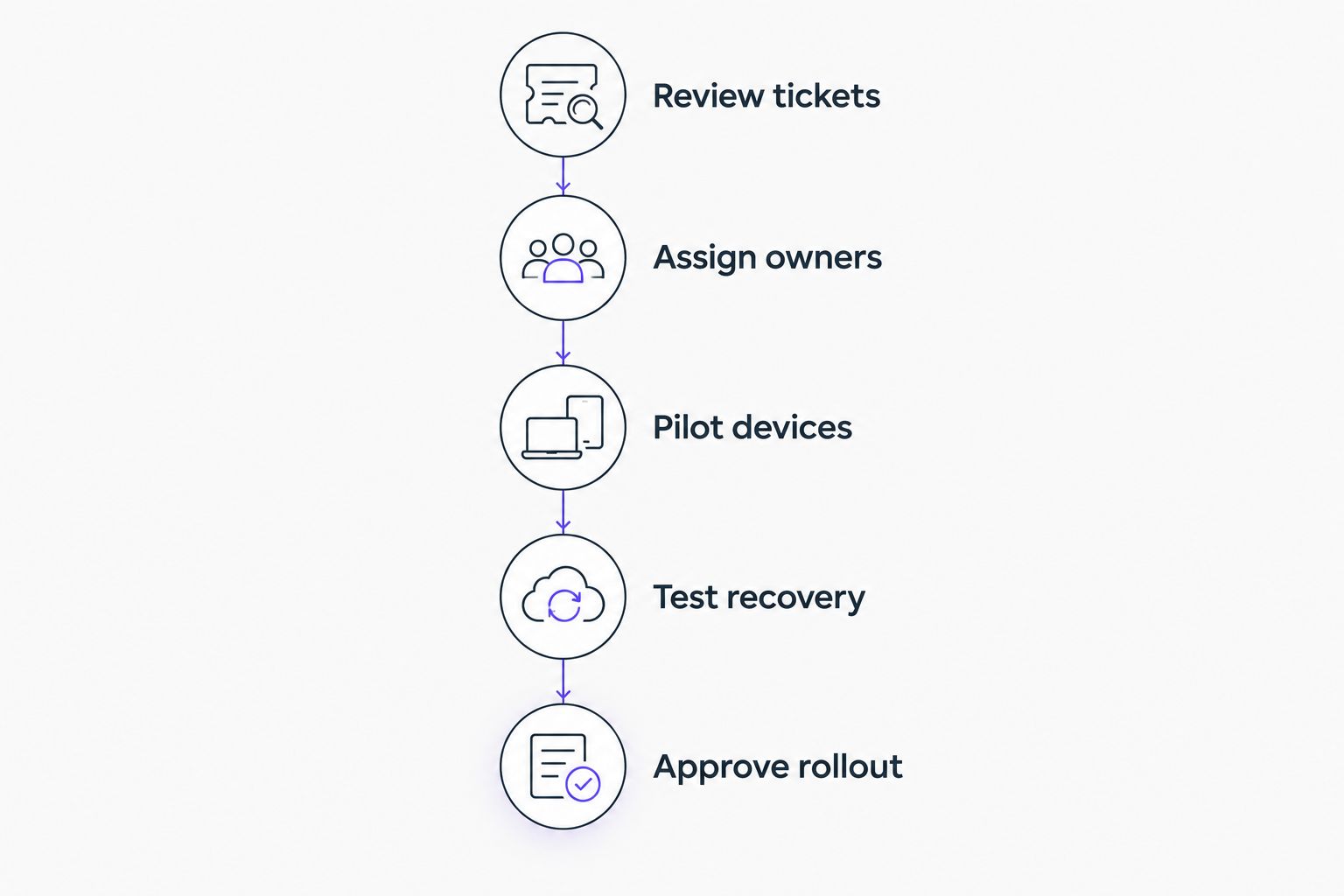
Use a small, documented evaluation before changing the whole practice:
- Review tickets: Examine 10 recent support tickets and identify the problems your proposed tools must address.
- Assign owners: Name the administrator, escalation contact, and person authorized to approve disruptive changes.
- Pilot devices: Test on 2 representative workstations, including the clinical workflows and peripherals they use.
- Test recovery: Confirm a relevant restore and document what the exercise did and did not establish.
- Approve rollout: Record unresolved exceptions, staff instructions, and the conditions for expanding deployment.
Keep the evaluation tied to staff work. A device appearing in an administration console proves enrollment, not that printing, application access, or an approved support session works correctly.
If you need help defining responsibilities, contact BritCore IT with the affected systems, recurring problems, and existing support arrangements. Start with the operational requirements rather than a software shopping list.
Which IT support tools should you choose?
Choose an IT ticketing system as the default foundation, then fill the maintenance, troubleshooting, recovery, monitoring, and security responsibilities your current setup does not cover. Keep capable existing tools when they meet the requirements; replacement adds work without automatically improving support.
Choose managed IT support when your main gap is administration and ownership rather than missing software. BritCore IT provides ongoing business IT support, but your practice should establish its specific healthcare requirements and service scope before agreeing to an arrangement.
FAQ
What are the best IT support tools for healthcare practices?
The best IT support tools for healthcare practices cover ticketing, endpoint management, remote support, backup, network monitoring, and endpoint security. Start by assigning responsibility for each function, then choose tools that meet your access and workflow requirements.
What should a healthcare practice choose first?
Choose accountable support intake first if requests currently lack owners or histories. Keep an existing ticketing system if it already provides assignment, escalation, and a usable work record.
Does a healthcare practice need every tool category?
A practice needs each relevant responsibility covered, not necessarily a separate application for every category. Existing platforms and service arrangements can cover multiple functions; verify their actual scope.
Does remote support expose patient information?
A remote support session can expose information displayed on the workstation. Establish approved screen preparation, technician permissions, and session procedures before allowing access.
Does IT support software make a practice HIPAA compliant?
No single IT support application makes a practice HIPAA compliant. Compliance depends on applicable obligations, policies, agreements, configuration, and actual handling of protected health information.
Is managed IT support better than buying software?
Managed IT support addresses ongoing administration and support ownership; buying software provides capabilities your team must operate. Choose according to who will maintain systems, respond to issues, and manage escalations.
How should a practice evaluate support tools in 2026?
Evaluate support tools against representative workflows, access requirements, and documented responsibilities. Test on suitable devices, verify a relevant restore, and record unresolved exceptions before expanding deployment.
One last thing
Test the handoff, not just the feature. Submit a sample issue that the first technician cannot resolve, then follow its escalation. A tool demonstration can show a button; a completed handoff shows whether the next person receives the information needed to act.