

Instead of manually creating accounts and fixing access problems on a new hire’s first morning, use a Microsoft 365 onboarding workflow that prepares identity, applications, and the workstation before handoff. This 2026 guide sets out the configuration steps and acceptance checks; zero downtime is the goal, not a guarantee from account creation alone.
- A Microsoft 365 onboarding workflow needs verified identity, application access, device readiness, and a named handoff owner.
- BritCore IT suits business teams seeking ongoing managed IT support rather than consumer technical help.
- Create synchronized identities at their authoritative source; do not create a competing cloud account.
- Treat zero-downtime onboarding as an acceptance standard, not a promise that provisioning finishes immediately.
Why this matters
An account can exist without the employee being ready to work. A missing application license, an unfinished mailbox, or a workstation that cannot satisfy access requirements can still block the first task.
BritCore IT is best suited to business teams seeking managed IT support rather than consumer tech support. Its business IT support covers ongoing system maintenance and structured user assistance. For onboarding, define the required outcomes before anyone starts creating accounts.
Use this 2026 workflow for new employees entering an existing Microsoft 365 environment. It does not replace a tenant migration plan, redesign your identity architecture, or guarantee uninterrupted access to every external application.
Before you start
- Approved access request: Collect the employee’s legal and preferred names, manager, start date, department, required applications, and approved access groups. Identify who can approve exceptions and who owns the handoff.
- Administrative access and equipment: Arrange appropriately scoped Microsoft 365 administrator permissions, the required licenses, a prepared workstation, and access to your organization’s device-management process. Confirm that someone can support the employee during initial sign-in.
- Identity-source check: Determine whether the employee’s account belongs in Microsoft 365 directly or in a directory synchronized to Microsoft Entra ID. Creating a cloud account first can conflict with the intended synchronized identity.
Choose the identity source before touching the user-creation wizard. That decision controls where you create and maintain the account.
| Identity approach | Best for | Advantage | Limitation |
|---|---|---|---|
| Cloud-only identity | Organizations that manage employee identities directly in Microsoft Entra ID | Account creation does not depend on an on-premises directory synchronization process | Separate systems still need their own access assignments or integrations |
| Synchronized identity | Organizations with an established directory synchronization design | Preserves the organization’s existing identity authority | Account readiness depends on synchronization and the correct source attributes |
Do not change identity architecture just to make one onboarding request easier. Follow the established design, and route unclear cases to the identity administrator before proceeding.
Configuration unit: onboarding record
Define the access package
- Record the approved identity. Confirm spelling, sign-in name, email domain, manager, department, and start date. Check whether an account already exists before creating another one.
- List the required access. Specify Microsoft 365 applications, team memberships, shared resources, and any separate business applications. Distinguish an application license from permission to a particular team, site, or mailbox.
- Assign owners. Name the person responsible for identity, the person responsible for the workstation, and the person accepting the completed handoff. One person can hold several responsibilities, but none should remain unassigned.
- Define the acceptance test. Write down the employee’s first required business task and the resources needed to complete it. Include remote access requirements when the employee will work outside the office.
Expected result: An approved onboarding record identifies what the employee needs, who authorizes it, and how readiness will be demonstrated.
Keep passwords, recovery codes, and authentication secrets out of the onboarding record. Record completion status and ownership instead; use your approved credential-delivery process for sensitive information.
For a 2026 onboarding checklist, include the date each requirement was last reviewed. An old role template is not evidence that every listed permission is still appropriate.
Configuration unit: identity and access
Create the correct account
- Check for an existing identity. In the Microsoft 365 admin center, open Users, then Active users. Search for the approved employee identity and investigate potential duplicates before adding another account.
- Follow the correct creation path. For a cloud-only account, select Add a user. Enter the approved First name, Last name, Display name, and Username, and select the intended domain. For a synchronized account, stop here and create or update the identity at its authoritative source instead.
- Assign the required licenses. In the account-creation process, select the approved product licenses and review the included applications. Confirm the user’s usage location, which Microsoft requires for license assignment.
- Review before completing creation. Check the sign-in name, domain, license selections, and account role. Keep ordinary employee accounts separate from administrative privileges unless an approved requirement states otherwise.
Apply access and authentication requirements
- Add approved memberships. Assign the employee to the groups, teams, and application access listed in the onboarding record. Do not copy another employee’s entire permission set without reviewing it.
- Check authentication requirements. Verify that the account falls under the organization’s intended authentication and access policies. Plan how the employee will complete required registration without sharing authentication factors with an administrator.
- Verify service readiness. Confirm that assigned services are provisioned before declaring the account ready. A license assignment is a configuration action, not proof that a mailbox or application is usable.
Expected result: The correct identity exists, required licenses are assigned, approved memberships are present, and authentication requirements are understood.
Use the business multi-factor authentication guide when reviewing authentication requirements. Do not weaken an established policy merely to make an onboarding test pass.
Configuration unit: workstation readiness
Prepare the device before handoff
- Confirm ownership and device status. Match the workstation to the onboarding record. Check that the device uses the organization’s approved setup method and that its management record corresponds to the physical equipment being handed over.
- Complete the approved enrollment process. Follow your existing Windows provisioning procedure rather than choosing an enrollment method during the handoff. On an already configured Windows workstation, Settings, Accounts, and Access work or school provide a place to inspect its work-account connection; do not disconnect an existing connection as a troubleshooting shortcut.
- Verify required applications. Check installation and launch behavior for the applications in the approved access package. Confirm that the employee’s assigned license supports the intended desktop or browser experience.
- Check device health. Review update status, endpoint protection, storage, network connectivity, and management reporting. Resolve pending restarts before running the final acceptance test.
- Prepare the actual work location. Test the network connection the employee will use. For remote onboarding, confirm that required access methods and support arrangements work away from the office.
Expected result: The assigned workstation reports to the intended management system, runs the required applications, and can reach the resources needed for the employee’s work.
A 2026 onboarding record should identify the workstation by its asset identifier, not just its model. Otherwise, a successful test on one laptop can be mistaken for readiness on another.
Do not call the device ready because an administrator can sign in. The employee’s permissions and access policies are the conditions that matter.
Configuration unit: acceptance and handoff
Prove readiness with the employee identity
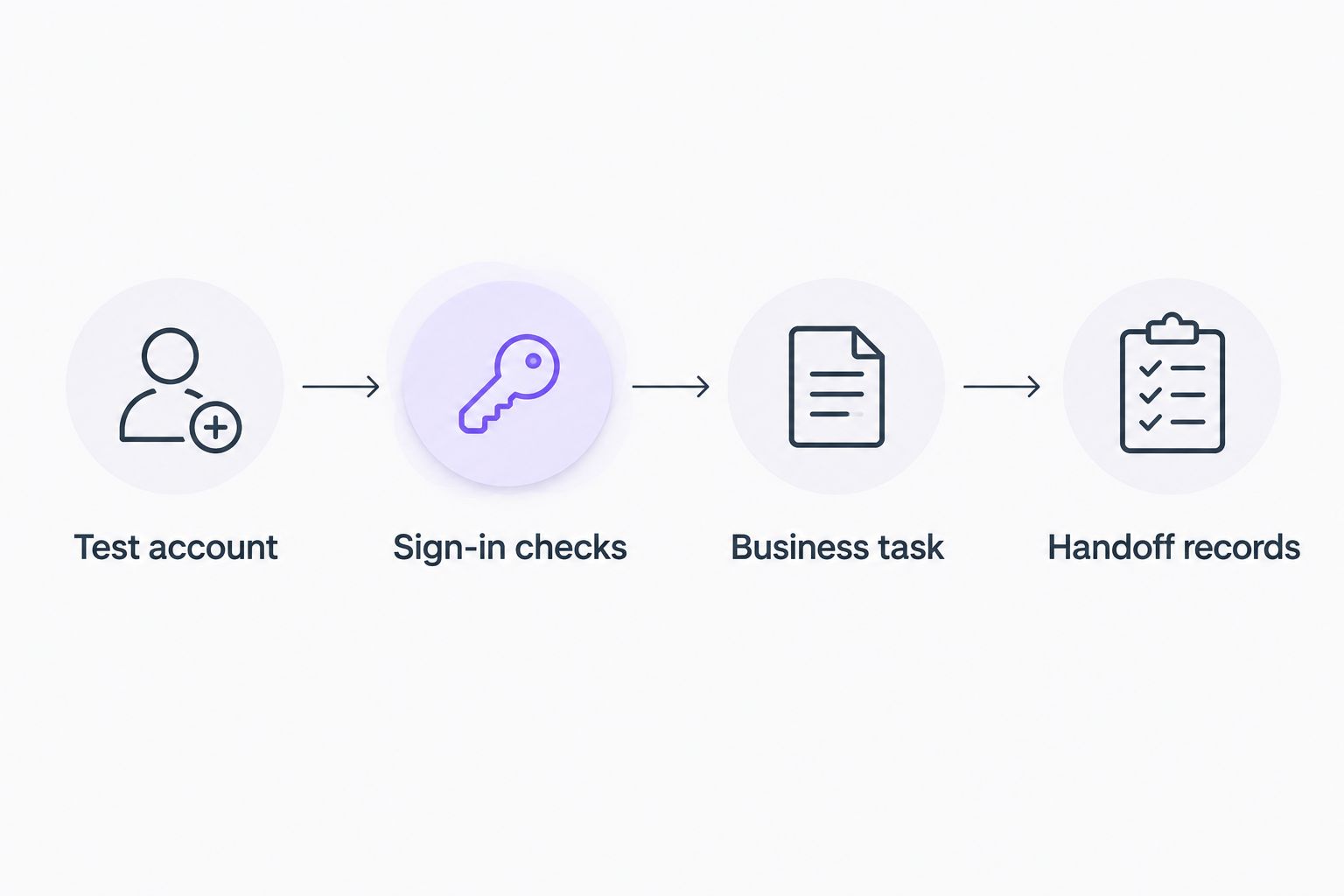
- Use 1 test account before standardizing the process. Validate a new onboarding template with a designated test identity that reflects the intended role. Remove temporary access and handle the test account under your account-lifecycle policy after validation.
- Run 2 sign-in checks. Test the approved browser-based work session and the required workstation session. Complete employee authentication registration through the approved process; never ask the employee to disclose a verification code to support staff.
- Complete the first business task. Open the required application and access an approved working resource. Where email is required, verify both sending and receiving rather than relying only on the mailbox appearing in an administrator view.
- Save 3 handoff records. Record the identity checked, the device checked, and the acceptance result. Include unresolved exceptions and the person responsible for each one.
- Deliver the handoff. Give the employee their sign-in instructions, the approved support route, and any remaining actions. Provide a clear owner for problems that require technical escalation.
Expected result: The employee can perform the agreed task on the assigned device, and the handoff record shows what passed and what remains unresolved.
For 2026 reporting, distinguish account creation from accepted onboarding. BritCore IT’s managed IT support covers ongoing business technology maintenance; the acceptance record gives your support owner concrete evidence to work from.
Second workflow: update access when an employee changes roles
A role change needs the same ownership and validation as a new hire, but it also requires a removal decision. Adding the new department’s access without reviewing the old department’s permissions leaves the change unfinished.
- Obtain approval for the new role and its effective date.
- Compare current access with the new approved access package.
- Identify which permissions must end and which require a documented transition period.
- Apply changes at the correct identity or application authority.
- Retest the employee’s new business task and confirm that removed access no longer works as intended.
Expected result: The employee receives the new role’s access without retaining unrelated permissions by default.
Keep the existing identity unless your organization’s identity design requires otherwise. Creating another account for the same employee can separate work history, permissions, and application ownership across identities.
Troubleshooting
The account exists, but the mailbox is not ready
Check that the assigned license includes Exchange Online and that the relevant service is enabled. Review provisioning status and Microsoft 365 service health before changing the account; repeated deletion and recreation introduces additional variables.
The employee sees an access-policy block
Read the sign-in failure details in Microsoft Entra ID and identify the policy that blocked access. Correct the underlying requirement, such as incomplete authentication registration or device compliance, rather than excluding the employee from protection without approval.
A synchronized employee has duplicate identities
Stop making changes to both accounts. Ask the identity administrator to review source attributes and synchronization matching, then follow an approved correction plan before assigning additional services or moving data.
The application opens, but the shared resource does not
Check resource permissions separately from application licensing. Verify the intended group membership, team membership, or site access, and retest with the employee identity rather than an administrator account.
The workstation is missing from management
Confirm the device identifier, enrollment state, and network connectivity. Compare the physical workstation with the management record before attempting re-enrollment, since an incorrect record can send troubleshooting toward the wrong device.
Customize your workflow
Standardize approved outcomes before automating account creation. Begin with a role-based access package, a named approver, and an acceptance test. Automate only the actions whose inputs and exceptions you understand.
For your 2026 workflow, make each automated action report success or failure to the onboarding owner. A submitted request is not proof that the downstream account, license, membership, or application is ready.
BritCore IT provides managed IT support for business teams. If your organization needs ongoing maintenance and structured user assistance, start the discussion with the systems involved, the current onboarding steps, and the point where work gets blocked.
Discuss your onboarding requirements
Describe your systems, access requirements, and current handoff process.
FAQ
What is a Microsoft 365 onboarding workflow?
A Microsoft 365 onboarding workflow is an approved sequence for preparing an employee’s identity, licenses, access, workstation, and handoff. It ends with a verified business task, not simply a newly created account.
Can Microsoft 365 onboarding guarantee zero downtime?
No, a Microsoft 365 onboarding workflow cannot guarantee zero downtime. Preparing access and testing it before handoff reduces avoidable blockers, but service provisioning, device conditions, and external applications still affect readiness.
Should I create a new employee directly in Microsoft 365?
Create the employee directly in Microsoft 365 only when that matches your cloud-only identity design. For synchronized identities, create or update the account at the authoritative directory source.
Does assigning a Microsoft 365 license give access to every team?
No, assigning a Microsoft 365 license does not automatically grant every team or resource permission. Review team membership, shared-resource access, and separate application assignments against the approved request.
How do I test onboarding without sharing an employee’s password?
Have the employee complete sign-in and authentication registration through the approved process while support verifies the outcome. Use a designated test identity for template validation rather than requesting the employee’s password or verification codes.
What changes when an employee moves departments?
A department change requires a review of both new access and existing permissions. Approve the new access package, remove access that no longer applies, and retest the employee’s work.
What should an onboarding handoff include?
An onboarding handoff should include sign-in instructions, the support route, the acceptance result, and any unresolved exceptions with named owners. Keep authentication secrets outside the general onboarding record.
One last thing
Test the permission that should be absent. Successful access confirms that work can begin; checking an explicitly excluded resource confirms that the role boundary also works. Include that negative test when validating a role template, especially before repeating it for more employees.