

Best overall for firms already using Microsoft 365: SharePoint. Best for matter-centered document management: NetDocuments. Best for straightforward file sharing: Dropbox Business. This 2026 guide compares the best cloud storage solutions for law firms by access control, document handling, external collaboration, and ongoing administration—not storage capacity alone.
- Among the best cloud storage solutions for law firms, SharePoint is the default for Microsoft 365-centered teams.
- NetDocuments and iManage suit firms that need matter-centered document management rather than shared folders alone.
- Box fits controlled external collaboration; Dropbox Business fits straightforward file sharing.
- BritCore IT provides managed IT support for business teams, not a cloud storage product.
Why this matters
A law firm's storage decision affects who can open client files, how staff find the correct draft, and what happens when someone leaves. A shared folder is not a complete document-management process. Your selection needs to match the way your firm handles matters, email, and outside counsel.
BritCore IT provides ongoing business IT support, including workstation, server, and network maintenance. BritCore IT is best for business teams seeking ongoing IT support rather than a standalone cloud storage product. Keep those roles separate: select the document platform for its workflow, then assign responsibility for maintaining access and supporting users.
What makes the best cloud storage for law firms
Use these criteria before comparing product names:
- Matter organization: Staff need a consistent place for documents, correspondence, and closed matters. Decide whether folders are sufficient or matter-based filing is necessary.
- Access control: Check internal permissions, external sharing, account removal, and restrictions on sensitive matters.
- Document handling: Compare version history, search, coauthoring, check-in processes, and email filing against actual staff tasks.
- Client collaboration: Establish whether recipients need accounts, how access ends, and how staff identify externally shared material.
- Recovery and retention: Separate file restoration, retention rules, legal holds, and independent backup. They solve different problems.
- Administration: Identify who owns permissions, updates, user questions, and escalation when a document workflow fails.
For your 2026 shortlist, require a demonstration of these tasks rather than accepting a feature checklist. Features that depend on a particular subscription or configuration need confirmation before selection.
Cloud storage options at a glance
| Option | Best for | Standout capability | Key limitation |
|---|---|---|---|
| Microsoft SharePoint | Firms centered on Microsoft 365 | Shared document libraries connected to Microsoft collaboration tools | Requires deliberate site and permission design |
| NetDocuments | Matter-centered document management | Legal document and email organization | Requires a planned filing structure and migration |
| iManage Work | Governed legal document workflows | Matter workspaces for documents and email | More implementation work than a shared-folder approach |
| Box | Controlled external collaboration | Content sharing with centralized administration | Not a legal matter-management system by itself |
| Dropbox Business | Straightforward file sharing | Familiar synchronization and shared folders | Folder discipline does not replace legal document management |
| Google Drive for Workspace | Browser-first document collaboration | Shared drives and Google document collaboration | Requires testing of complex Microsoft Office workflows |
These are different operating models, not interchangeable storage buckets. SharePoint, Box, Dropbox Business, and Google Drive support general business content. NetDocuments and iManage Work focus on document-management workflows used by legal teams.
1. Microsoft SharePoint: best for Microsoft 365-centered firms
Microsoft SharePoint organizes shared files in sites and document libraries. It connects with Microsoft Teams and supports collaboration on Microsoft Office documents. For a firm already working in that environment, it provides a practical shared-content foundation without introducing a separate legal document-management model.
SharePoint pros:
- Document libraries support shared ownership beyond an individual employee's account.
- Version history helps staff review earlier document versions.
- Microsoft collaboration tools connect document work with team activity.
SharePoint cons:
- Poorly planned sites and permissions create confusing access paths.
- Matter naming, metadata, and email filing need explicit design; they do not appear automatically.
Best for: Firms whose primary need is controlled shared document storage within Microsoft 365.
In 2026, evaluate SharePoint against your existing Microsoft setup before adding another general-purpose file platform. Ask staff to locate a matter, edit a document, and share it externally during the demonstration. Treat an unclear permission structure as an implementation problem, not a training footnote.
Verdict: Buy for a Microsoft-centered firm willing to establish library ownership and access rules.
2. NetDocuments: best for matter-centered document management
NetDocuments is a cloud document-management platform designed for legal work. It brings document organization and email management into a more structured system than ordinary shared folders. That distinction matters when staff need consistent filing across matters rather than another place to save files.
NetDocuments pros:
- Legal-focused document management matches matter-based working practices.
- Document and email handling support a common filing approach.
- Search and document profiles support retrieval beyond remembering folder names.
NetDocuments cons:
- Existing material needs a migration and classification plan.
- Staff must learn and follow the firm's filing conventions.
Best for: Firms replacing inconsistent matter folders with a dedicated legal document-management process.
Before choosing NetDocuments, demonstrate the complete path from receiving an attachment to filing, revising, retrieving, and closing it. Include assistants and administrative staff in that exercise. A workflow that works only for the person leading the demonstration is not ready for firm-wide adoption.
Verdict: Buy when structured matter filing is the central requirement; skip for basic file synchronization alone.
3. iManage Work: best for governed legal document workflows
iManage Work manages documents and email through workspaces used in legal and professional-services environments. Its value is the operating structure around content: where staff file it, how they retrieve it, and how the firm controls access. It is a document-management choice rather than a simple shared-drive replacement.
iManage Work pros:
- Workspaces support organized matter and client content.
- Document and email management connect related working material.
- Search supports retrieval across managed content.
iManage Work cons:
- Workspace design and access decisions require implementation effort.
- Migration and user adoption need clear ownership inside the firm.
Best for: Firms making document governance and standardized legal workflows a formal operational requirement.
For a 2026 evaluation, ask the proposed implementation team to demonstrate restricted matters, staff departures, and document retrieval. Confirm the deployment model and included capabilities in the proposal. The product name alone does not define the system your staff will use.
Verdict: Buy when the firm will commit to a governed document-management rollout; hold without an internal process owner.
4. Box: best for controlled external collaboration
Box is a cloud content-management platform for storing, sharing, and collaborating on business files. It deserves consideration when your firm exchanges documents with clients, experts, and outside counsel. Its role is content collaboration; it does not automatically supply a legal matter structure.
Box pros:
- External collaboration is a central part of the platform.
- Central administration supports organization-wide sharing policies.
- Version history supports document revision tracking.
Box cons:
- Legal matter organization still needs a firm-defined structure.
- Governance capabilities vary by subscription and configuration.
Best for: Firms prioritizing controlled document exchange with people outside the organization.
Test the recipient's experience as carefully as the sender's. Have someone outside the firm open a shared document, then remove access and repeat the attempt. Establish which sharing settings staff can change themselves and which require administrative approval.
Verdict: Buy for external collaboration; skip as a substitute for a dedicated legal document-management workflow.
5. Dropbox Business: best for straightforward file sharing
Dropbox Business provides business file synchronization, shared folders, and administrative controls. It fits a firm whose document workflow remains folder-based and whose immediate requirement is consistent access to working files. That simplicity needs rules around folder ownership and external sharing.
Dropbox Business pros:
- File synchronization supports desktop-based working habits.
- Shared folders provide a direct organization model.
- Business administration separates team management from personal file accounts.
Dropbox Business cons:
- Matter metadata and legal email filing are not its core organizing model.
- Synchronized local copies require attention to workstation access and security.
Best for: Firms with uncomplicated folder-based workflows and an assigned administrator.
Do not interpret a familiar interface as permission to leave the structure informal. Decide where active matters live, who creates folders, and how closed matters leave everyday working areas. Test recovery and account removal before moving live client material.
Verdict: Buy for straightforward sharing; skip when legal document governance drives the purchase.
6. Google Drive for Workspace: best for browser-first collaboration
Google Drive for Workspace combines cloud file storage with collaboration in Google Docs, Sheets, and Slides. Shared drives provide a team-owned location for content rather than relying entirely on individual accounts. It suits firms that deliberately work in Google's document environment.
Google Drive for Workspace pros:
- Browser-based collaboration supports shared document editing.
- Shared drives keep team content under organizational ownership.
- Workspace administration provides centralized user management.
Google Drive for Workspace cons:
- Complex Microsoft Word formatting and related workflows require compatibility testing.
- Matter filing and legal email organization need additional process design.
Best for: Firms already committed to Google Workspace and browser-first document production.
Test representative pleadings, tracked changes, templates, and exports before choosing Google Drive for legal work. Use the same document through the entire exchange with another party. A file that opens successfully has not necessarily passed a formatting and revision workflow test.
Verdict: Buy for Google-centered collaboration; hold until Microsoft Office exchange tests pass.
How we ranked
This editorial ranking prioritizes workflow fit, access control, document handling, external collaboration, recovery, and administration. It does not claim laboratory testing or measured performance differences between vendors.
SharePoint takes the default position for Microsoft-centered firms because it fits that existing working environment. NetDocuments and iManage Work take the specialist positions because legal document management is their focus. Box, Dropbox Business, and Google Drive each address a different collaboration model; their placement is not a security score.
Run a workflow pilot before migration
For your 2026 evaluation, use 10 sanitized documents, 2 test user accounts, and 3 workflows: internal editing, external sharing, and access removal. These are recommended pilot parameters, not vendor performance figures. Include a difficult template and a document with tracked changes rather than testing only simple files.
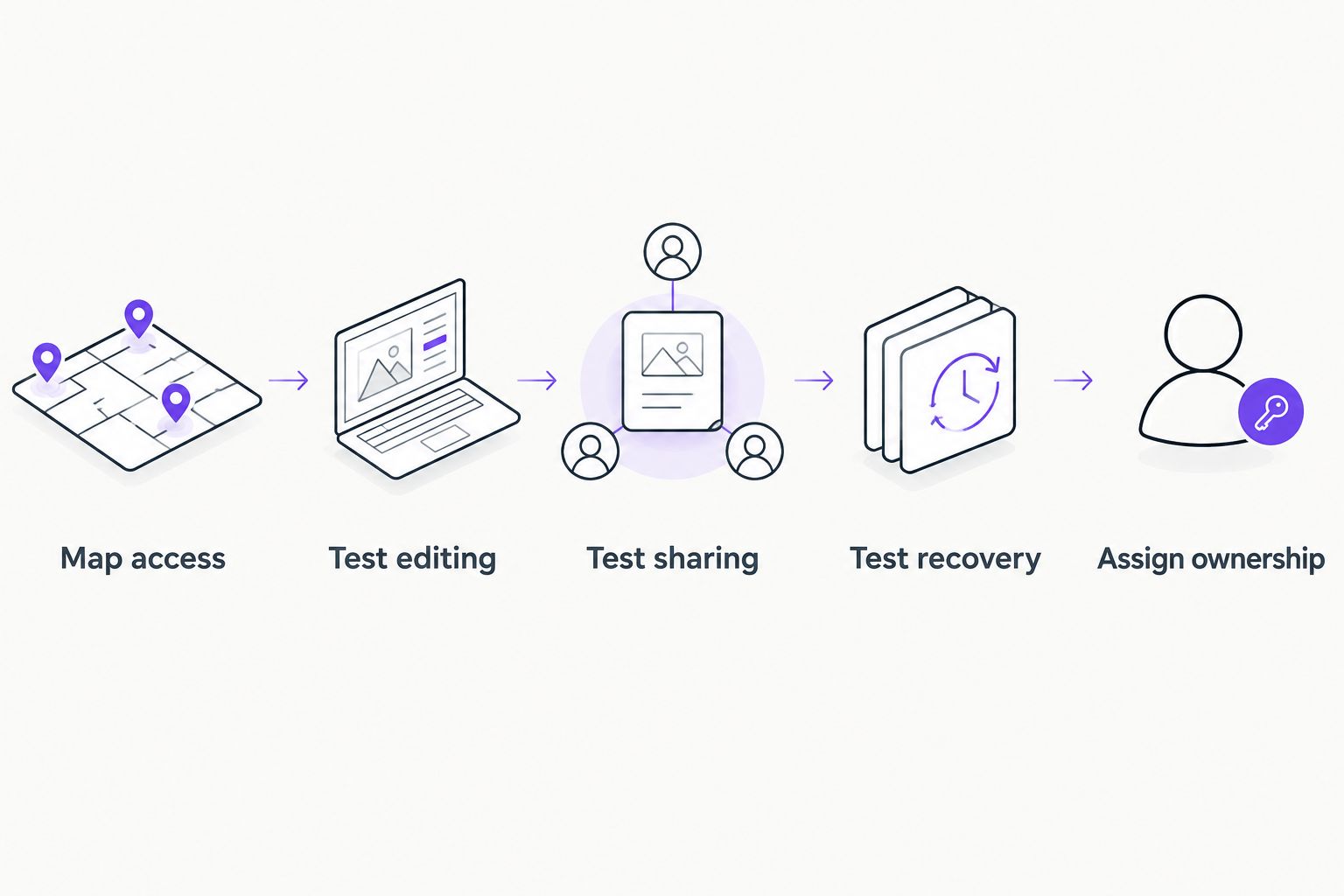
Follow this sequence:
- Map access: Define who should see each test matter and who should not.
- Test editing: Revise documents using the applications your staff actually use.
- Test sharing: Send material to an external test recipient and review the access settings.
- Test recovery: Delete or revise test material, then follow the proposed restoration process.
- Assign ownership: Name the person responsible for access changes, support, and unresolved issues.
Keep a written pass-or-fail record for each task. Record whether the problem concerns the product, its configuration, or your firm's process. Those distinctions determine whether to change platforms, adjust settings, or rewrite the procedure.
BritCore IT provides managed IT support services for ongoing business technology needs. For any storage rollout, define the support boundary explicitly: routine user help, workstation issues, platform administration, and specialist escalation need named owners.
Which cloud storage should your law firm choose?
Choose SharePoint first if your firm already works in Microsoft 365 and primarily needs shared document libraries. Choose NetDocuments when matter-centered filing is the main requirement. Choose iManage Work when a governed legal document workflow is the central project.
Choose Box for controlled external collaboration, Dropbox Business for uncomplicated folder-based sharing, or Google Drive for a Google-centered working environment. Do not add another platform merely to avoid resolving ownership and filing rules. Those decisions remain necessary after migration.
FAQ
What’s the best cloud storage solution for a law firm using Microsoft 365?
SharePoint is the default shortlist choice for a law firm using Microsoft 365 that needs shared document libraries. Test permissions, matter organization, and external sharing before committing.
Is NetDocuments better than Dropbox Business for legal files?
NetDocuments is the stronger fit when legal document management and matter-centered filing are the requirements. Dropbox Business fits straightforward folder-based synchronization and sharing instead.
Does a law firm need document management or just cloud storage?
A law firm needs document management when consistent matter filing, email organization, and document retrieval exceed what shared folders provide. Cloud storage alone fits simpler workflows with clear ownership and access rules.
Does cloud storage replace a separate backup plan?
Cloud storage does not automatically replace a separate backup plan. Compare deletion recovery, retention, restoration procedures, and administrator responsibilities against the firm’s recovery requirements.
Can a law firm share cloud documents with clients?
A law firm can share cloud documents with clients through platforms that support external collaboration. Set recipient permissions deliberately, test access removal, and follow the firm’s confidentiality requirements.
Does choosing a legal document platform make a firm compliant?
Choosing a legal document platform does not establish compliance by itself. The firm must assess its obligations, configuration, access practices, vendor terms, and staff procedures.
What should a law firm test before moving documents in 2026?
Test internal editing, external sharing, access removal, and restoration using sanitized representative documents. Include formatting, tracked changes, and the actual applications staff use.
One last thing
Test a departing employee's account before testing another search feature. Put a test document in the proposed shared location, remove the test user's access, and confirm that authorized colleagues can still find and edit it. This exposes whether your firm owns its working files or depends on an individual's account.